 Pages Before Pixels
Sketch each page with a wireframe
Last reviewed
The short version
- A wireframe is a rough drawing of a page, made from boxes and labels.
- It shows what goes where, not how it looks.
- Draw one for each kind of page, not for every page.
What a wireframe is
A wireframe is a visual guide to the skeleton of a website.[1] The word comes from other fields that use a skeletal framework to show a shape.[1]
It focuses on what a screen does, not what it looks like.[1] That's why a wireframe usually leaves out type styles, colour and graphics.[1]
Here is an example from Wikipedia's article on the subject.
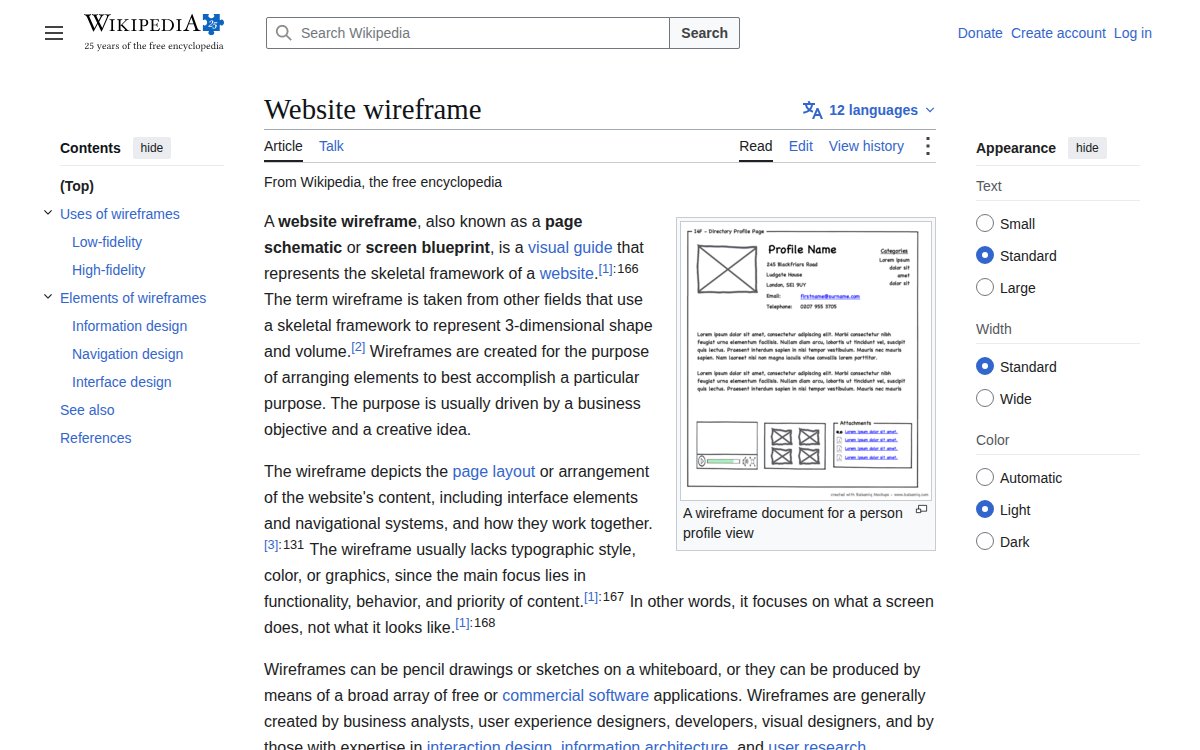
Pen and paper is fine
You don't need a tool. Wireframes can be pencil drawings or whiteboard sketches.[1] MDN also tells beginners to grab pen and paper and sketch out the site.[2] It adds that the sketching really helps.[2]
Use a ruler if it makes you feel better. Don't worry about neat lines.
How to draw one
- Pick a page. Start with the home page.
- Draw a big rectangle. That's the page.
- Add boxes for each part: header, menu, headline, text, button, footer.
- Put a cross in a box where a photo will go. A placeholder rectangle stands in for a real image.[1]
- Label every box in words. "Headline", "Opening hours", "Order button."
- Number the boxes by importance. Number 1 is the first thing the visitor should notice.
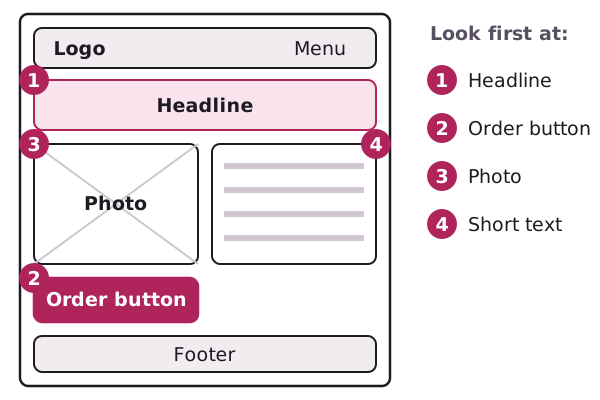
That's a whole wireframe. It should take ten minutes.
Use the plan you already made
Your purpose sentence tells you what the page is for. Your menu tells you what links to show. Your key-page lists tell you what goes inside. A wireframe puts them together.
If a box doesn't help the page's main job, delete it.
Low detail first
Wireframes come in two kinds, depending on how close they are to the real thing.
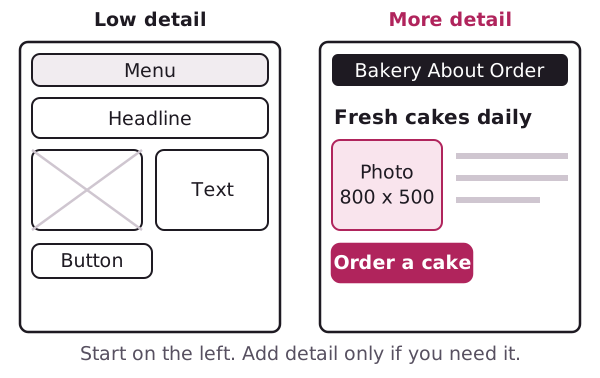
Plain sketches are called low-fidelity. They're quick and cheap to change.[1] That's why you start with these.
You can add detail later, such as real words and image sizes. For a small site, a sketch may be all you need.
What a wireframe can't show
A wireframe is a still picture, so it doesn't show interactive details well.[1] If you plan a button that opens a panel, write a note beside the sketch.
Also, it won't tell you what the final page will look like. That comes from colour and type choices, which you can make later.
One sketch per type of page
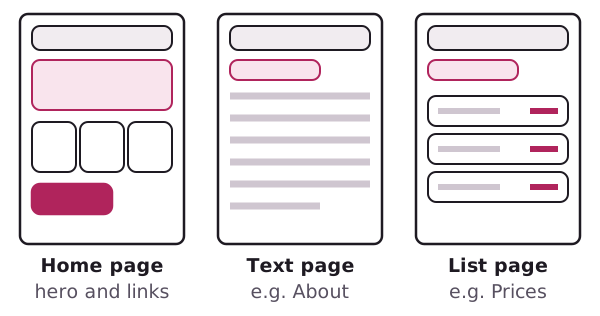
Most small sites use a few types of page. A home page is one. A page of plain text, like About, is another. A page with a list, such as a price list, is a third.
Draw one wireframe for each type. Then reuse it.
Wikipedia describes wireframing as the point where thinking becomes tangible.[1] Your plan stops being a list and starts looking like a website.
Next: fill those boxes with copy people can scan.
Sources
- Website wireframe, Wikipedia (accessed 2026-11-01)
- What will your website look like?, MDN Web Docs (accessed 2026-11-01)